
How to track team spending with virtual cards without chasing receipts.
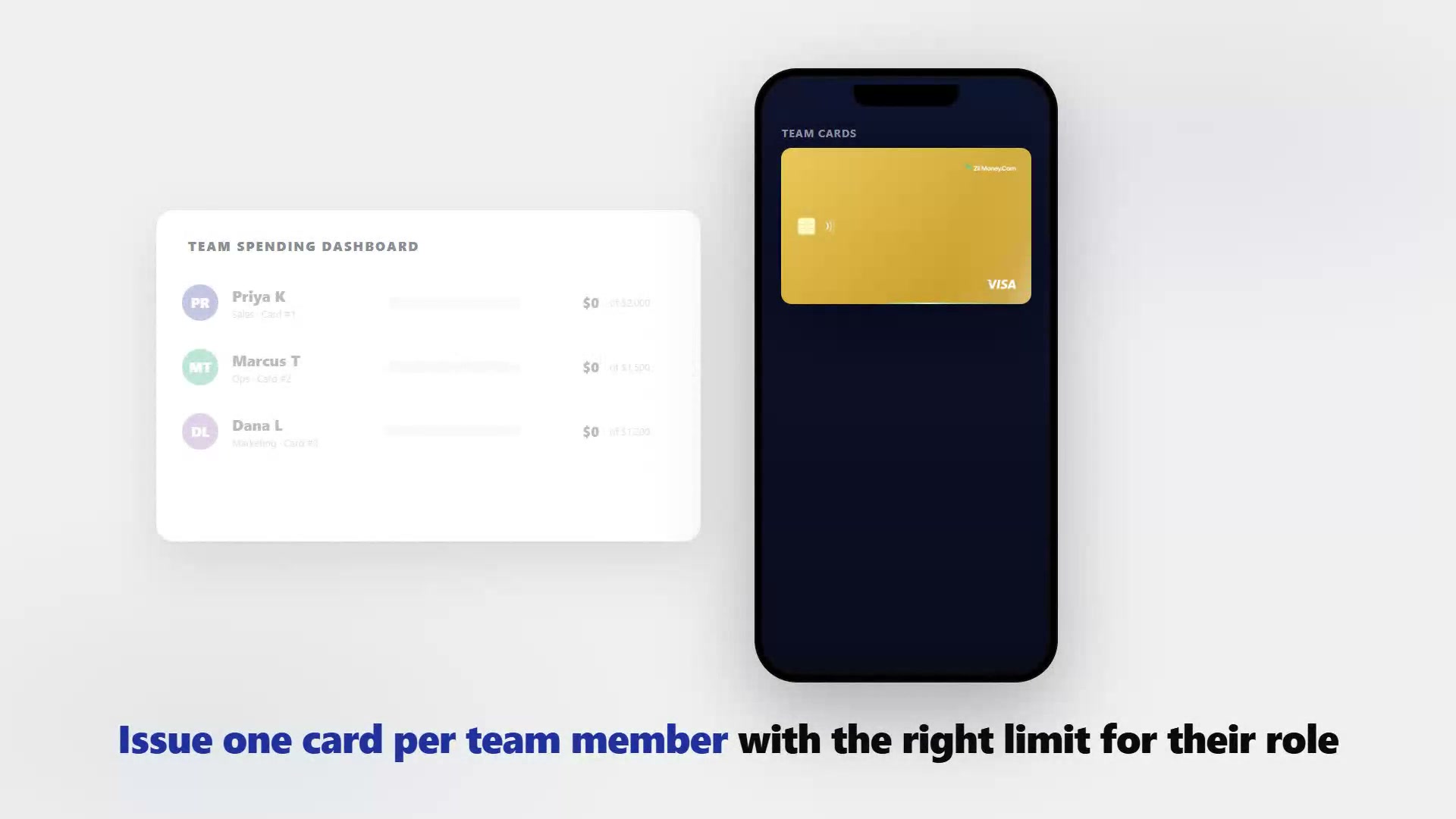
When every team member has their own virtual card, you do not need to ask who spent what. Every charge lands in one dashboard, tagged to the right person, with the merchant name, amount, and date already there. Filter by cardholder, export by period, and close the month without a single email asking for a receipt.
VirtualCardMaker.com, powered by Zil Money, is a financial technology company, not a bank. Banking and money movement services are provided through partner financial institutions and licensed service providers. FDIC insurance coverage applies only to eligible deposit products and accounts, and is subject to applicable terms, conditions, limitations, and requirements. Additional information regarding partner institutions, products, and services is available in the applicable terms and agreements.









Read summarized version with:
The reason tracking team spending is painful usually has nothing to do with the amount of spending. It is that one shared card or a handful of reimbursements mixes everyone's charges together with no automatic way to untangle them. Giving each person their own virtual card with a set limit solves this at the source: every charge is tagged to a card, every card is tagged to a person, and the dashboard shows you everything sorted without any manual effort from the team.
The setup is not complicated, but the naming and limit decisions you make upfront determine whether the tracking actually works or devolves back into receipt chasing. Here is how to do it right.
The setup: one card per person, or one card per project
The most important decision before you issue cards is whether to organize by person or by project. Both work. The right choice depends on how you want to see your spending data.
| Organize by | Good when | Report view you get |
|---|---|---|
| Person | Each person handles their own type of spend across multiple projects | How much did this employee spend this month? |
| Project | Multiple people buy for the same project and you need one tally per job | How much did Project Ridgeline cost us in materials? |
| Department | Budget is owned by a team, not individuals | What did the operations team spend in Q2? |
For most small and mid-size teams, per-person cards work best. Each person manages their own limit and sees their own charges. You see everyone's charges across all cards from one admin view.
Name cards so the dashboard is readable without filtering
Your dashboard is only as readable as your card names. Vague names ("Card 1," "Team Card") make the transaction view nearly useless. Good card names let you scan the dashboard and understand spending without opening a single filter.
Practical naming patterns that work:
- Name + role: "Priya K — Field Sales" — lets you filter by role without a tag
- Project code + phase: "Ridgeline — Materials" — groups project spend by phase
- Department + period: "Marketing — Q3 2026" — auto-archives itself when the period ends
- Vendor type: "SaaS Tools — Engineering" — useful when the same department buys from many vendors in the same category
Pick a naming convention before you issue the first card. Once you have 15 cards with inconsistent names, retroactively cleaning up the dashboard is tedious. Five minutes deciding on a format before you start saves hours later.
Set limits that match the role, not the worst-case scenario
The temptation is to set a high limit so nobody runs out mid-month and has to come back to you. Resist it. Limits that match actual spending authority do two things a high limit cannot: they catch unusual charges immediately and they keep budget conversations front-loaded instead of after-the-fact.
A field sales rep who typically spends $400 a month on client meals should have a $600 card, not a $5,000 card. If a charge comes through for $1,200, you see the attempted transaction as a decline, not a settled charge on next month's statement.
Reading the dashboard: what you can see and when
Once cards are live, the dashboard shows each transaction as it clears, usually within one to two business days of the purchase. You can see:
- Merchant name and MCC (merchant category code)
- Transaction amount and date
- Which card (and therefore which person or project) the charge belongs to
- Card balance remaining against the limit
Filter by card name to see one person's full history. Filter by date range to see what any team member spent in a given week. The data is already there — you are just choosing how to view it.
The problem before virtual cards
- Eight consultants submitted expense reports at month-end with receipts from personal cards.
- Naomi spent two days matching receipts to client codes and chasing missing backup.
- Three consultants consistently forgot to flag client-billable charges, costing the firm on invoices.
After switching to per-person virtual cards
- Each consultant has a card named "[Name] — [Active Client]" with a $1,500 monthly cap.
- Every charge posts to the dashboard with the card name already there.
- Naomi exports the CSV at month-end, sorts by card, and maps charges to client codes in 20 minutes.
- No expense reports. No missing receipts. No follow-up emails.
Exporting for reconciliation and accounting
At the end of a period, export the transaction data from the dashboard. The export typically includes:
- Card name (which maps to person, project, or department)
- Merchant name
- Transaction date
- Amount
- Any notes or receipts attached to the charge
Import that file into your accounting software, map the card names to your chart of accounts, and the reconciliation is mostly done. If you have a bookkeeper, they can run this themselves without needing to contact any team member for information that is already in the export.
Frequently asked questions
Can I see all team members' spending in one place?
Do team members see each other's charges?
Can I export team spending data to my accounting software?
What happens if a team member hits their card limit?
Can I group cards by department or project?
How do I handle receipts from team members?
Issue a card with these rules on it.
Set the limit, restrict the merchant, choose the active window, and send the card. Every charge lands in one dashboard, already attributed.
Build one in Card StudioNext, on the same problem.
- Spend control
How to auto-categorize business spending
Hand-coding every transaction is slow and error-prone. With category rules, your spend sorts itself: match by merchant or amount, then rename, categorize, and tag automatically, so the books are clean before you open them.
June 5, 2026 · 4 min read - Spend control
How to manage nonprofit spending with virtual cards.
Nonprofit money comes with strings: donors, grantmakers, and the board all expect to see where it went. Give each program and grant its own capped virtual Visa, keep restricted funds separate, attach a receipt to every charge, and turn report time into a clean export.
May 29, 2026 · 7 min read - Spend control
How to control spending across multiple locations
When every branch, store, or franchise spends on its own, head office is always one statement behind. Virtual cards put each location on capped cards you manage from one login, with spend you can review before it posts.
June 5, 2026 · 4 min read
The next vendor gets its own Visa card.
Not the shared one. Its own number, its own ceiling, its own line in the ledger.