
Virtual Cards for Healthcare Practices
Issue department-level virtual cards across your clinic or practice. Set hard spending limits, lock each card to approved vendor categories where supported, and close the gap shared cards leave open.










One shared card across a practice leaves an audit gap nobody can close later.
Healthcare organizations run several distinct spend categories: medical supplies, equipment service contracts, software subscriptions, continuing education, and facilities upkeep.
- Everything lands on one mixed transaction list. Put all of those categories on a shared card and the list has to be sorted after the fact.
- Nobody can say which department spent what. Or whether the charge was authorized in the first place.
- A physical card is passed between people. One card shared across a team produces one record for all of them.
- Nothing stops a charge outside the approved vendor type. A card with no category control authorizes wherever it is presented.
- A staff departure touches everyone. Cancelling the shared number cuts off every department that was using it.
A card per cost center, capped to its allowance and locked to its category.
Issue a department-specific Visa card that carries its own controls and produces its own charge record. Each card authorizes only what it is configured to allow.
- A budget ceiling per department. A supply card for a small outpatient clinic might carry a $500 monthly cap; an equipment maintenance card might carry $5,000. Charges above the ceiling are declined.
- Merchant-category locks where supported. A card configured for medical supply purchases will not authorize at a restaurant or a clothing retailer, where the category-lock feature is supported.
- An expiration date for project spend. Issue a card that stops on a set date rather than one that outlives the purchase it was opened for.
- Freeze or cancel one card only. When a coordinator leaves, freeze that card and issue a new one. Other departments are unaffected.
- Exports mapped to cost centers. Each row already shows the location, department, merchant, and amount, so month-end has no manual sorting step.
- Fits the wider practice. The same wallet covers department spending and recurring software subscriptions.
Four steps from a cost center to a controlled card.
- 01
Map the cost centers.
A three-clinic group with supplies, facilities, and a front desk at each is nine distinct cost centers, and so nine cards.
- 02
Issue and label.
Create a card per cost center and label it with the location and department, for example “North – Supplies”.
- 03
Set limits and locks.
Cap each card on the prior year’s average spend, and restrict supplies cards to medical supply categories where supported.
- 04
Review and reissue.
Export transactions by card at month end, and freeze and replace a single card when the staff member behind it changes.
Reconcile by location and department at month end.
Watch each charge land against the cost center it belongs to. Issue, freeze, top up, or close any card from the same screen. For a broader view of department-level controls, see virtual cards for departments.
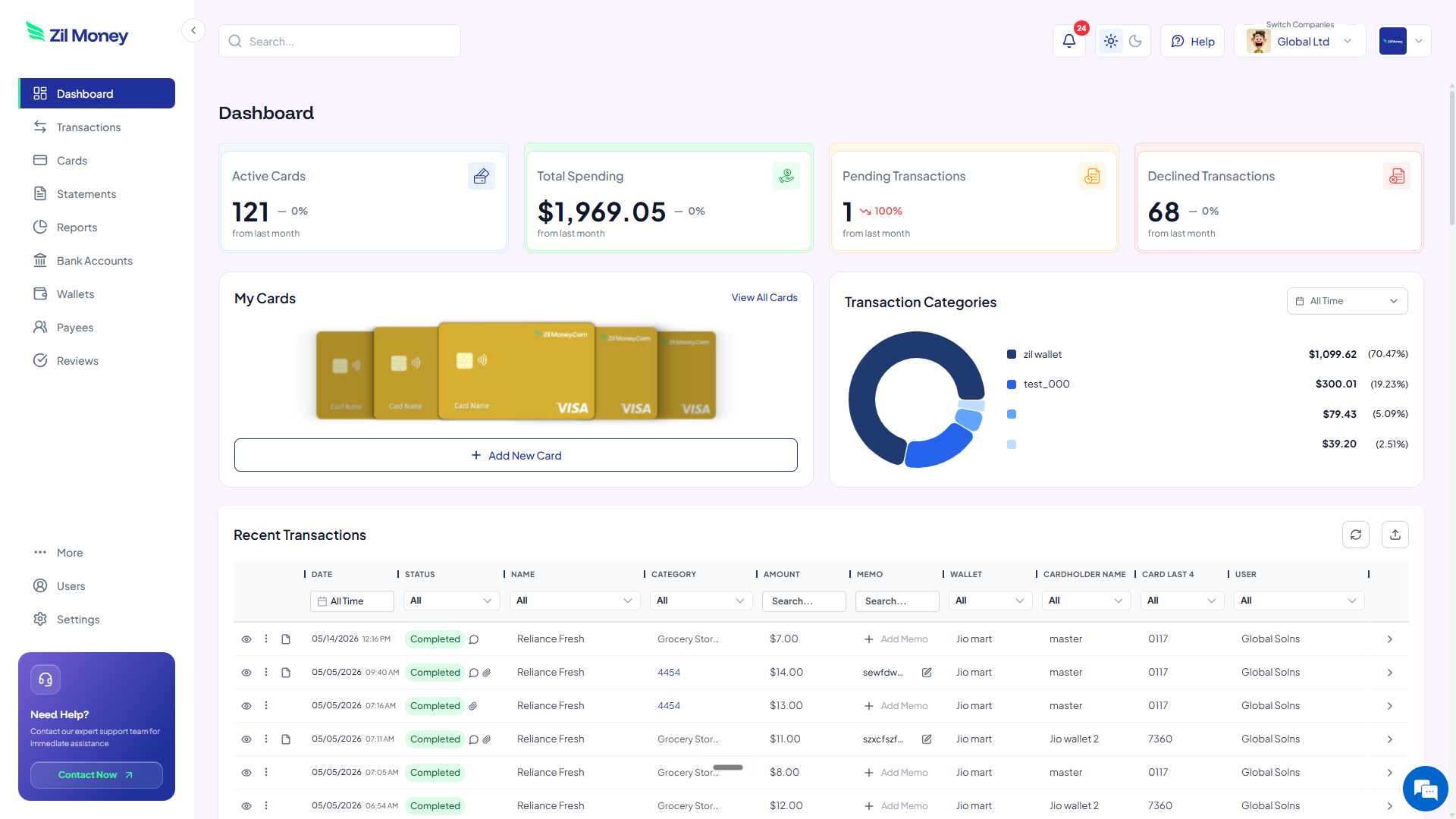
Live dashboard
Active cards, spend by department and location, declined attempts, every charge as it happens.
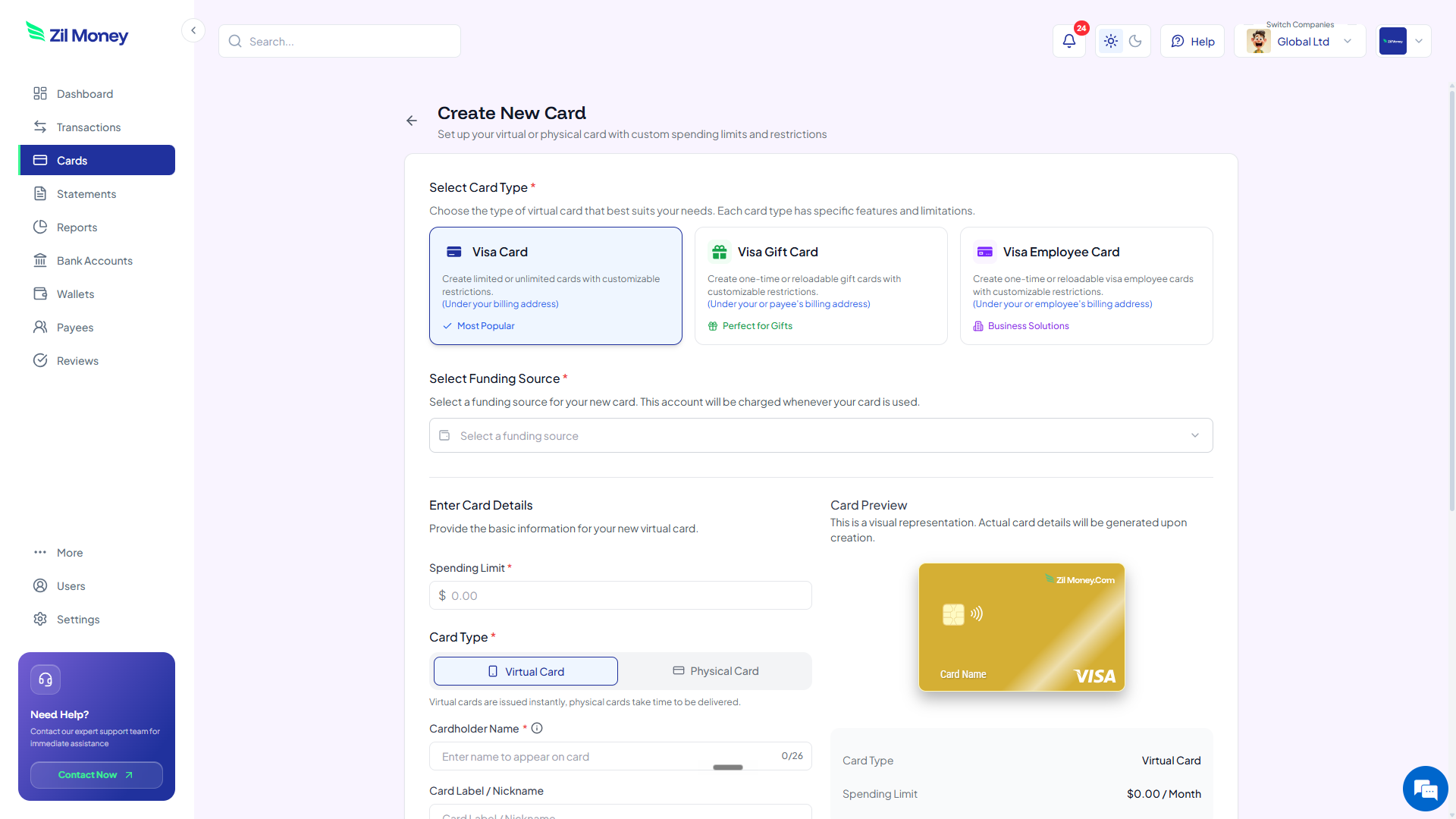
Issue a department card
Pick the card type, set the department’s monthly cap, choose virtual or physical, label it for the cost center.
What you can set on every department card.
ControlWhat you setWhy it matters
Spend limit
Monthly cap per cost centerThe card stops authorizing once it reaches the cap.
Store categories
Approved merchant categories, where supportedA supplies card declines outside its approved category based on supported controls.
Time window
Expiration dateProject-specific spend stops on the date you set.
Cardholder name
Location and departmentCharges roll up to one cost center rather than a mixed list.
One-time or reusable
ToggleA single equipment purchase or a standing supplies allowance.
Three ways practices use virtual cards.
- Supplies / per clinic
Each clinic’s supplies card carries a $600 monthly cap based on the prior year’s average and is restricted to medical supply categories where supported.
- Facilities / maintenance
A facilities card capped at $300 a month, restricted to maintenance and repair categories, keeps upkeep separate from clinical supply spend.
- Staff change / freeze and reissue
The supplies coordinator at one clinic leaves. Freeze that card, issue a new one to the incoming coordinator, and the other locations are untouched.
This is illustrative. Actual caps, category configurations, and workflow steps vary by organization, so review your existing purchasing policies before configuring card controls. Merchant and category locks are available where supported on your plan. Clean transaction records support the documentation practices described in the IRS guidance on business expenses.
Common questions.
What are virtual cards for healthcare?
Virtual cards for healthcare are single-use or multi-use digital Visa cards issued to specific departments, staff members, or vendors. Each card carries a preset spending limit and can be locked to approved merchant categories where supported, so charges outside that scope are declined automatically.
Can a virtual card be locked to one vendor or supplier?
Yes, where supported, you can restrict a virtual card so it only authorizes charges from a single merchant. This is useful for recurring supply orders or contracted service providers. Charges from any other merchant are declined at the point of sale.
Are virtual cards compliant with healthcare purchasing policies?
Virtual cards support common purchasing-policy controls such as per-transaction limits, category restrictions where supported, and detailed transaction records. They are a payment tool, not a compliance certification. Your organization is responsible for aligning card policies with applicable purchasing and regulatory requirements.
How do I cancel or freeze a virtual card for a departing staff member?
You can freeze or permanently cancel a virtual card from your dashboard without affecting other cards on the account. The card stops authorizing new charges the moment it is frozen. No physical card needs to be retrieved or destroyed.
What spending controls can I set on a healthcare virtual card?
You can set a per-card spending limit, an expiration date, and where supported, merchant-category restrictions. This means a card issued for medical supplies will not authorize charges at an unrelated merchant category. You can adjust or cancel controls at any time from the dashboard.
Do virtual cards work with existing accounting or EHR software?
Transaction records export in standard formats that can be imported into most accounting platforms. Virtual cards are not natively embedded into EHR systems; your finance team handles the reconciliation step. Check with your accounting software vendor for supported import formats.
Related setups.
- Industries
Virtual cards for medical and dental practices
A virtual card for a medical or dental practice is a prepaid Visa card scoped to one provider, operatory, or location, with a monthly cap and vendor locks. Cap monthly supply and l
4 min read - Industries
Virtual cards for real estate: one card per property, every dollar tracked.
A contractor who has your business card number can keep charging after the job ends. A contractor who has a virtual card capped to the renovation budget cannot. Virtual cards for r
6 min read - Industries
Virtual cards for IT companies, one card per tool.
IT spend is scattered across dozens of cloud subscriptions, developer tools, and vendor invoices, each billed to whatever card is handy. Issue a dedicated wallet-funded virtual Vis
5 min read
Issue the first one this afternoon.
Healthcare practices take about a minute each: pick the type, set the limit, add the restrictions, send it.