
Virtual Cards for Marketing Teams: Per-Campaign Spend Control
Issue a dedicated virtual card per campaign or ad channel. Set a hard spending cap, lock the card to specific ad platforms where supported, and close any card the moment a campaign ends.










Marketing overspends for three reasons, and a shared card causes all of them.
One card number across six platforms means no per-campaign budget visibility and no way to stop a charge that was never approved.
- No per-campaign visibility. A shared card is used across every campaign, so actual spend against plan is a reconciliation job rather than a number.
- A vendor charges an amount nobody approved. Nothing sits between the platform and the account to decline it.
- A campaign runs past its end date. Billing continues and nobody notices, because the payment method outlived the campaign.
- Auto-renew keeps a closed campaign billing. Ad platforms keep a payment method on file, so a paused campaign can resume charging unexpectedly.
- One compromised credential hits every platform. Changing the number means updating billing on all of them at once.
One card per campaign. A hard cap on each. Close it when the campaign ends.
Issue a dedicated virtual Visa card per campaign, channel, or vendor. Each card carries a fixed spending cap, and the card is the policy.
- Isolated budgets. Each card carries only the funds allocated to its campaign. A Google Ads card cannot be charged by a LinkedIn vendor, because they hold separate numbers with separate limits.
- Hard cap enforcement. The card declines once the limit is reached. The platform cannot bill beyond the approved budget without a manager raising the cap from the dashboard.
- Merchant locks where supported. Restrict a card to one ad platform or vendor category where that feature is available on your plan — useful when the credentials go to a freelance media buyer or an agency.
- Instant card closure. When a campaign ends, close the card. Any residual or erroneous billing attempt after closure is declined automatically.
- Accepted by the major platforms. These are Visa cards, accepted wherever Visa is accepted, including Google Ads, Meta Ads, and LinkedIn Campaign Manager. Confirm current acceptance with each platform, as payment policies change.
- Real-time spend per campaign. Review actual against planned from one dashboard, with no manual reconciliation across bank statements. Our guide to controlling ad spend goes deeper.
Four steps from an approved budget to a capped campaign.
- 01
Fund the account.
Transfer the total approved marketing budget before issuing any cards.
- 02
Create a card per campaign.
Issue a card and label it with the campaign name, for example “Q3 Brand Awareness – Facebook”, then set the cap to the approved budget.
- 03
Add it to platform billing.
Copy the number, CVV, and expiration into the ad platform’s payment settings, and enable a merchant or category lock where your plan supports it.
- 04
Monitor and close.
Watch spend per card in real time rather than waiting for a monthly statement, then close the card when the campaign concludes.
Four campaigns, four budgets, one dashboard.
Watch each charge land against the campaign it belongs to. Issue, freeze, top up, or close any card from the same screen. For budget strategy alongside card setup, see how to manage your marketing budget with virtual cards.
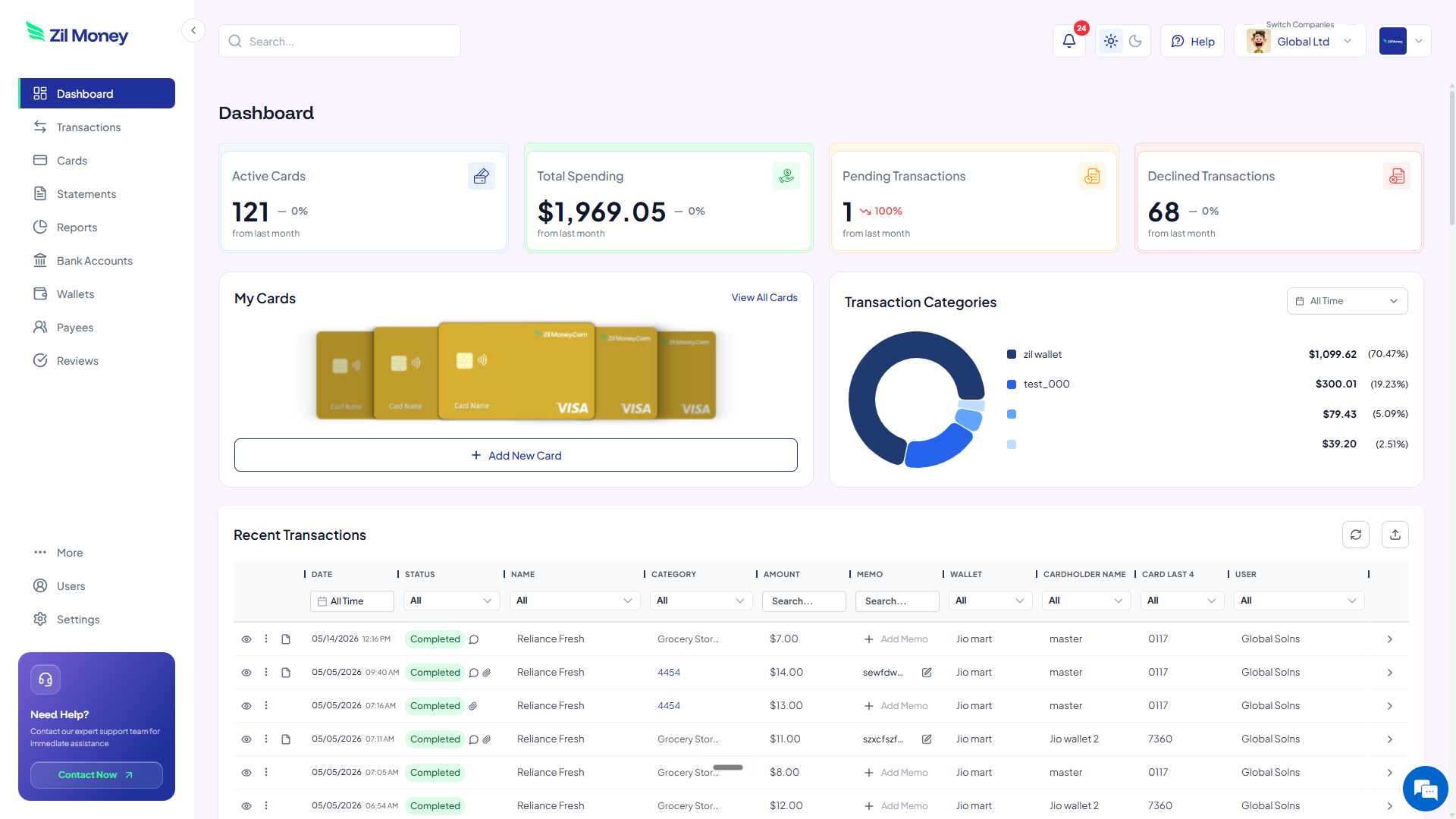
Live dashboard
Active cards, spend by campaign and channel, declined attempts, every charge as it happens.
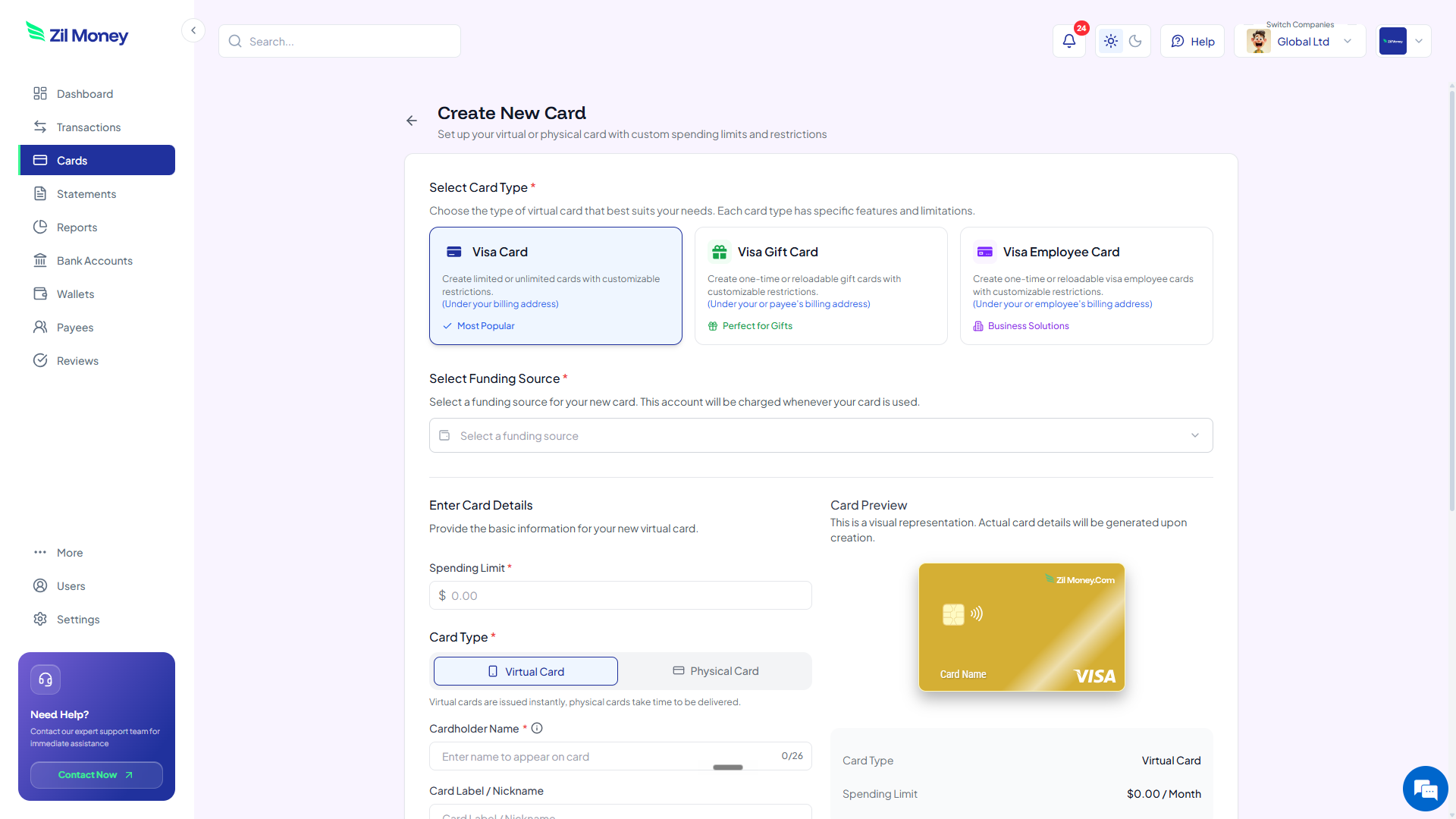
Issue a campaign card
Pick the card type, set the cap to the approved budget, choose virtual or physical, label it for the campaign.
What you can set on every campaign card.
ControlWhat you setWhy it matters
Spend limit
The approved campaign budgetThe card declines once the cap is reached; only a manager can raise it.
Store categories
Ad platform or category lock, where supportedA card shared with a media buyer can only transact within the permitted scope.
Time window
Start and end datesThe card stops when the flight does, so auto-renew cannot restart billing.
Cardholder name
Campaign or channel nameCharges roll up per campaign, so actual against planned is readable.
One-time or reusable
ToggleA single sponsorship or an ongoing always-on channel.
Three ways marketing teams use virtual cards.
- Q3 paid social / four cards
Instead of one shared card charged $22,000 across four platforms, issue four: Facebook at $6,000, Instagram at $4,500, LinkedIn at $8,000, YouTube at $3,500. When LinkedIn billing hits its cap, that card declines and the others are untouched.
- Agency or freelance buyer / scoped card
Give a media buyer a card locked to the advertising category where supported. Even holding the credentials, they can only transact within the permitted scope.
- Campaign end / close the number
Close all four cards when the quarter ends. No Q3 card number can be billed in Q4 without new cards for newly approved budgets.
Merchant locks and category locks are available where supported by your plan; confirm availability before relying on a lock as a compliance control. For a deeper comparison of virtual cards in ad spend scenarios, see virtual cards for ad spend. For full network acceptance details, see Visa’s prepaid and virtual card resources.
Common questions.
What are virtual cards for marketing teams?
Virtual cards for marketing teams are digital Visa cards issued per campaign or channel. Each card carries a spend cap and, where supported, a merchant or category lock so it can only be used at the designated ad platform or vendor category.
How do virtual cards stop budget overspend in marketing?
Each virtual card has a fixed spending limit. Once that limit is reached, the card declines further charges automatically, preventing any team member or vendor from drawing additional funds without manager approval.
Can I lock a virtual card to one ad platform like Google Ads or Meta?
Where supported, you can restrict a virtual card to a single merchant or spend category. A card issued for Google Ads can be blocked from processing charges at any other merchant, where that lock feature is available on your plan.
Do virtual cards work with Facebook Ads, Google Ads, and LinkedIn?
Yes. Virtual Card Maker issues Visa virtual cards, which are accepted at major ad platforms including Facebook Ads, Google Ads, and LinkedIn Campaign Manager wherever Visa is accepted as a payment method.
How many virtual cards can a marketing team issue?
Marketing teams can issue multiple virtual cards, one per campaign, channel, or vendor as needed. The exact volume limit depends on your account plan. Contact Virtual Card Maker to confirm card volume for your team size.
Are virtual cards for marketing teams safe?
Virtual cards reduce risk by limiting each card to a defined spend cap and, where supported, a single merchant. If card credentials are compromised, exposure is capped at the card limit and the card can be closed without affecting other active team cards.
Related setups.
- Industries
Virtual cards for construction: per-job and per-crew spend control.
Give every job, foreman, and supplier its own capped virtual Visa card. Material and tool spend maps to the right project, a charge over budget is declined, and a card closes the m
4 min read - Industries
Virtual cards for online sellers: a card per channel.
Running Meta ads, a supplier order, your Shopify apps, and your VA's buys off one card means a single decline or one flagged number can freeze everything at once. Issue a separate
5 min read - Industries
Virtual cards for travel agencies: pay suppliers per booking.
Stop fronting cash on one shared agency card and untangling the statement at month-end. Issue a wallet-funded virtual Visa for each booking, capped to the supplier's net rate and l
5 min read
Issue the first one this afternoon.
Marketing teams take about a minute each: pick the type, set the limit, add the restrictions, send it.